In this article
- 01 What your Copilot licence lets you build
- 02 How to build an agent with Agent Builder
- 03 How to find the Standard agent in Copilot Studio
- 04 How to build a Standard agent in Copilot Studio
- 05 Agents that need Copilot Credits
- 06 How Copilot licensing and credits work
- 07 Where to learn more about Copilot Studio
Someone in your office opens Copilot Studio to build an agent that answers questions from your HR policies. They click New agent, describe what they want, and try to test it. It won’t run, because the business has no Copilot Credits set up. The natural conclusion is that Copilot Studio costs extra.
For most agents, it doesn’t. Microsoft made a credit-billed agent the default and moved the option your Copilot licence covers behind a small arrow. If your business is on Microsoft 365 Business Premium with the Copilot Business add-on, most of the agents your staff want are already paid for. Building them is how you get the most out of that subscription.
What your Copilot licence lets you build
Anyone with a Copilot licence can build agents in two places, using their normal work account. There is no separate Copilot Studio account to buy (Copilot Studio licensing).
- Agent Builder, in the Microsoft 365 Copilot app, makes simple agents. You give it instructions and the files or SharePoint sites to answer from (Agent Builder overview).
- Agent (Standard), in Copilot Studio, does more. It can ask set questions, branch on the answers and run flows that act on what it collects.
Both are included for staff with the licence, when they use the agent in Copilot Chat, Teams or SharePoint.
Agent Builder, in the Microsoft 365 Copilot app
| Example agent | What it does |
|---|---|
| HR policy helper | Answers leave, expense and travel questions from the HR folder in SharePoint |
| Project knowledge agent | Answers questions about a job from its SharePoint site: scope, variations, who approved what |
Agent (Standard), in Copilot Studio
| Example agent | What it does |
|---|---|
| IT and facilities request desk in Teams | Asks which office, what is wrong and how urgent, suggests a fix, then logs the request in a SharePoint list and emails the right person |
| New starter onboarding agent | Walks a new starter through their first week, answers policy questions and records each completed step |
How to build an agent with Agent Builder
Start here if the agent only needs to answer questions from your files.
-
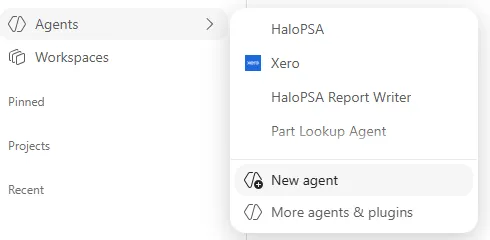
In the Microsoft 365 Copilot app, select Agents, then New agent.
-
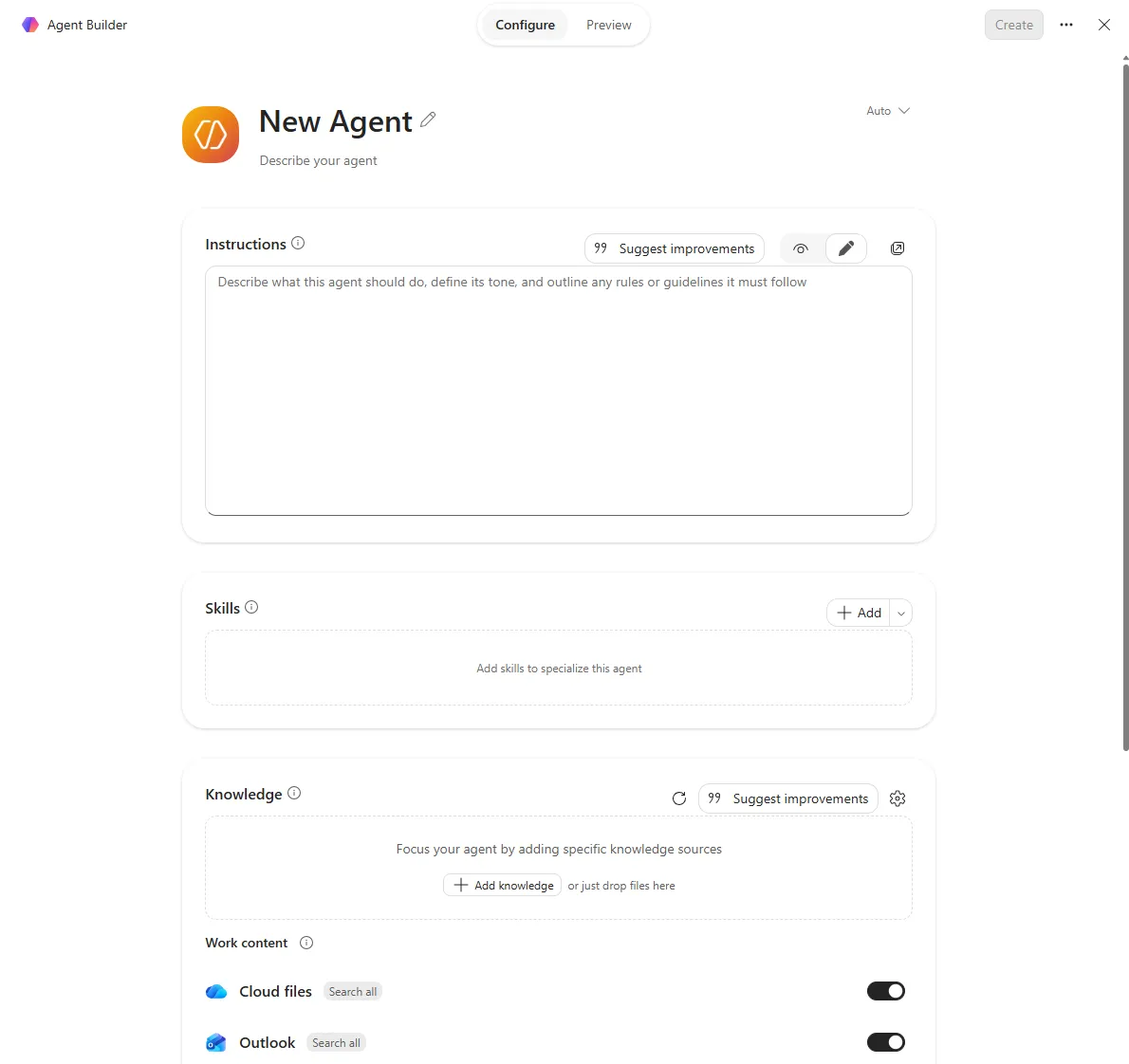
Describe the agent in the chat box, or switch to Configure and fill it in yourself. Write the instructions, then add the SharePoint sites or files under Knowledge.
-
Check its answers on the Preview tab, then select Create and share it with the people who need it.
How to find the Standard agent in Copilot Studio
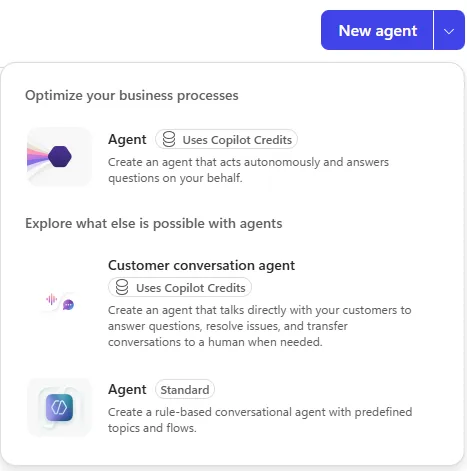
The main New agent button creates the credit-billed agent. The Standard option is under the small down arrow next to it, which is why so many people miss it.
How to build a Standard agent in Copilot Studio
The steps below build the IT and facilities request desk. The same steps suit any agent that asks questions and then does something with the answers.
-
Go to copilotstudio.microsoft.com and check the environment picker at the top right. Use the environment your IT provider set up for you.
-
Click the small down arrow to the right of New agent and choose Agent (Standard). If it isn’t there, select Other ways to build on the home page. You can also use Open classic experience at the foot of the side bar (Microsoft Learn).
-
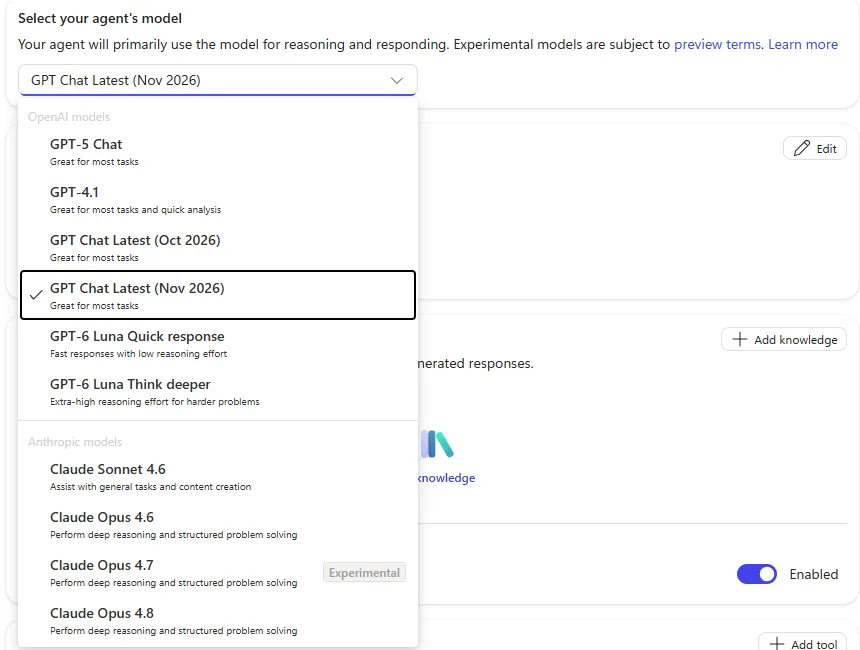
Describe the agent in a sentence or two, and Copilot Studio drafts its name and instructions and suggests knowledge to add. Edit the instructions so they say who it serves, what it handles and what it should refuse. The Overview page also lets you choose the model it uses, including Anthropic’s Claude models where your business has enabled them.
-
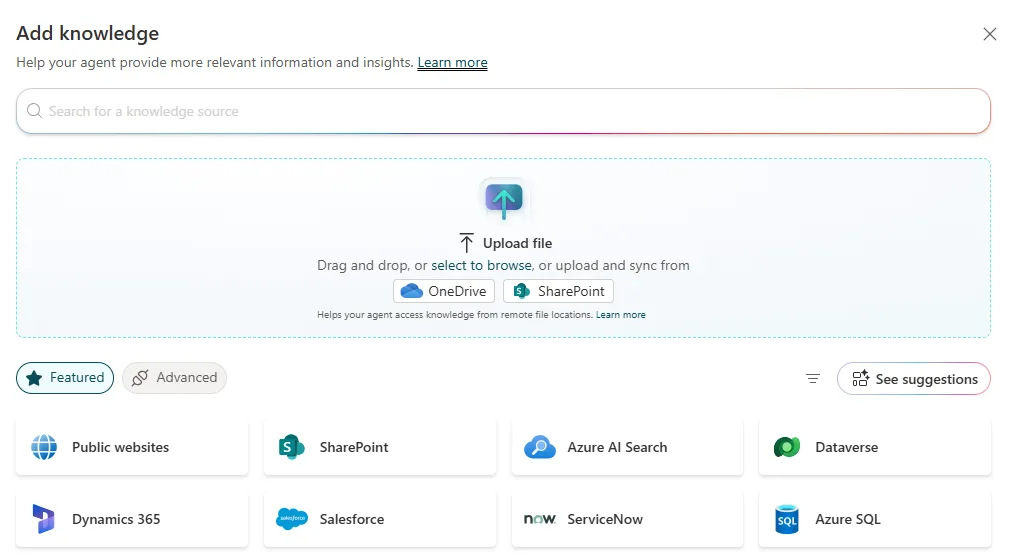
Under Knowledge, select Add knowledge and add the SharePoint site with your IT and facilities guides. The agent can then suggest fixes before logging a request. Web search is switched on by default. Turn it off if the agent should only answer from your own files.
-
Test it before adding anything else. Ask a real question in the Test your agent panel, adjust the instructions on the Overview page, then ask the same question again and compare. Repeat until the answers are right. Testing a Standard agent is included in the licence.
-
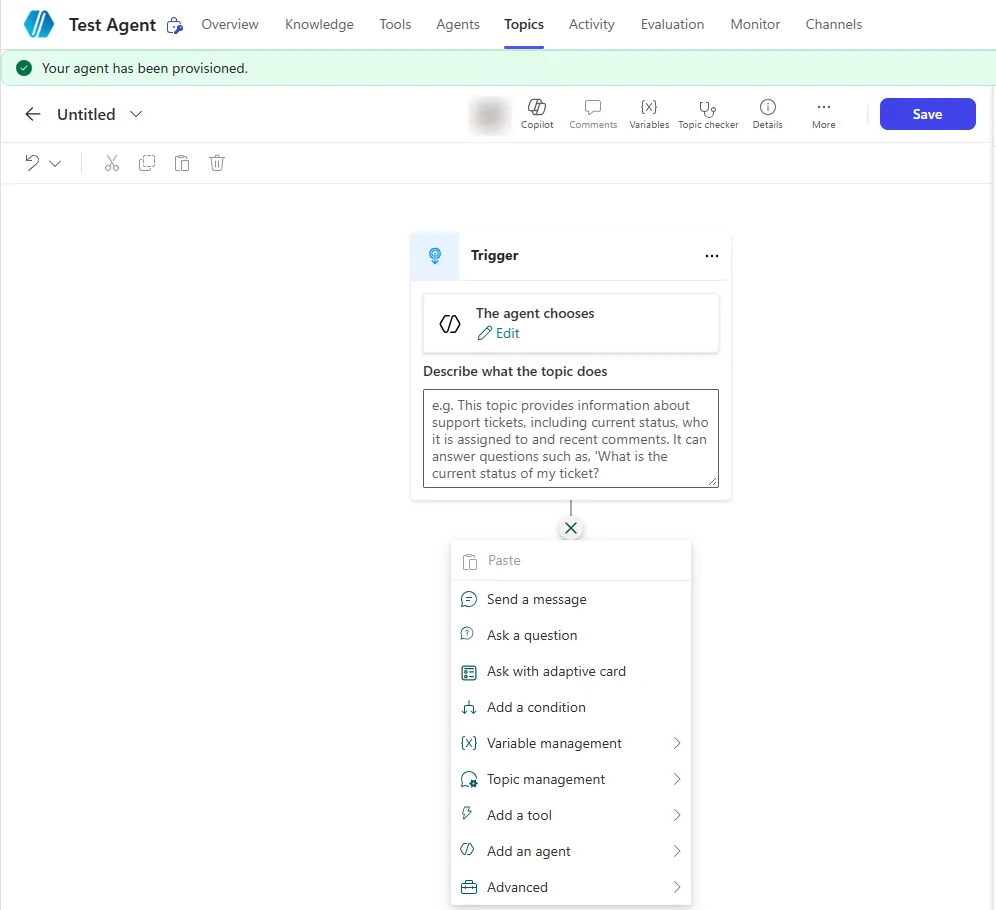
Add a topic for logging a request. Use Ask a question for the office, the problem and the urgency, then Add a condition to flag the urgent ones.
-
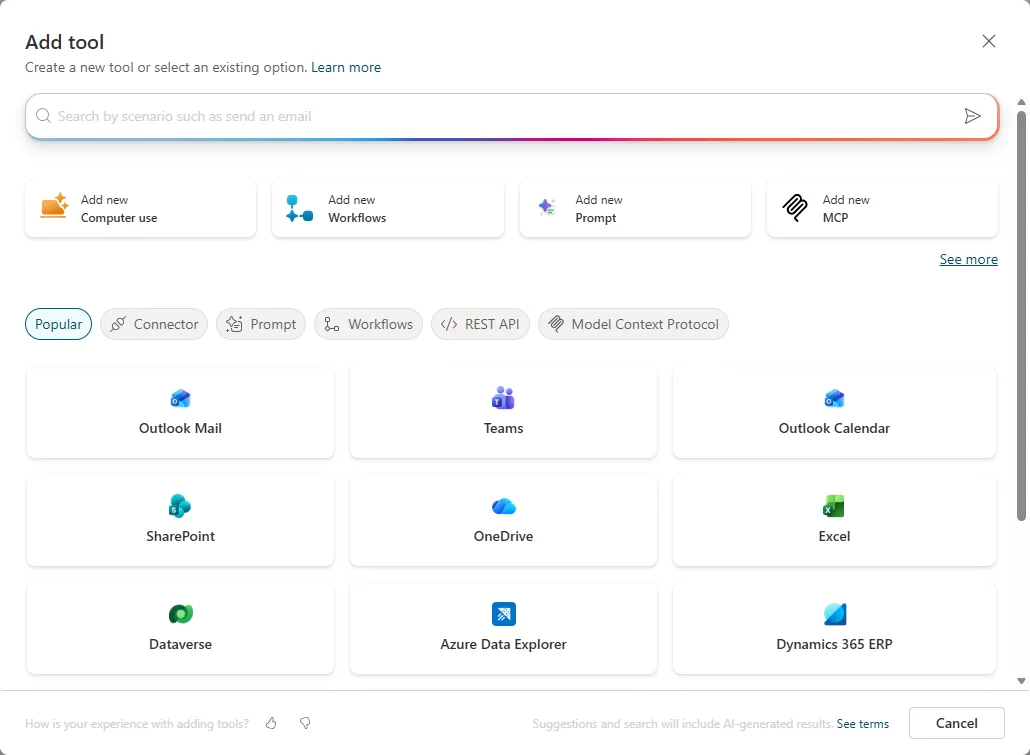
Add the flow that acts on the answers. This is the hardest step, because it is a small Power Automate build of its own. Under Tools, select Add tool, then Workflows, and build a flow that writes the answers to a SharePoint list and emails the right person. Start it from the When an agent calls the flow trigger, which keeps it included in the licence. Microsoft’s agent flows guide walks through it.
-
Set the first thing staff see. Select the greeting in the test panel to edit it, so it says what the agent can help with. On the Overview page, add Suggested prompts: ready-made questions that appear in Teams and Microsoft 365 Copilot.
-
Publish it to Teams and Microsoft 365 Copilot, then share it with the staff who should use it.
- Build simple “answer from these files” agents in Agent Builder first. Move to Copilot Studio when the agent needs to ask questions or act.
- Keep each agent to one job. A request desk and an onboarding guide are two agents.
- Get the agent answering well before you add the flow. A flow on top of poor answers only logs the wrong requests faster.
Agents that need Copilot Credits
The default Agent button and the Customer conversation agent both need credits, from the first test. They suit long, multi-step work and agents for people outside your business (harnesses overview).
| Option | Example agent | What it does |
|---|---|---|
| Agent (the default button) | Supplier invoice processor | Reads invoices as they arrive in the accounts inbox, matches them to purchase orders and sends the exceptions to a person |
| Agent (the default button) | Monthly board pack drafter | Pulls the month’s figures from Excel, writes the commentary in Word and builds the slides |
| Customer conversation agent | Website enquiry agent | Answers common questions from prospective clients and hands the conversation to a person |
If a process needs one of these, price it first with Microsoft’s agent usage estimator. Then ask IT to set up credits with a spending limit, and trial it the way we recommend trialling Copilot Cowork: a small group, a fixed period, and cost measured against what it produced.
How Copilot licensing and credits work
Microsoft charges for Copilot in two ways, and the confusion comes from mixing them up.
- The licence is a monthly fee per person. It covers Copilot in the Office apps, Copilot Chat, and the agents above when that person uses them inside Microsoft 365.
- Copilot Credits are pay-per-use, charged to the business. They only exist once IT sets them up, and until then the agents that need them won’t run.
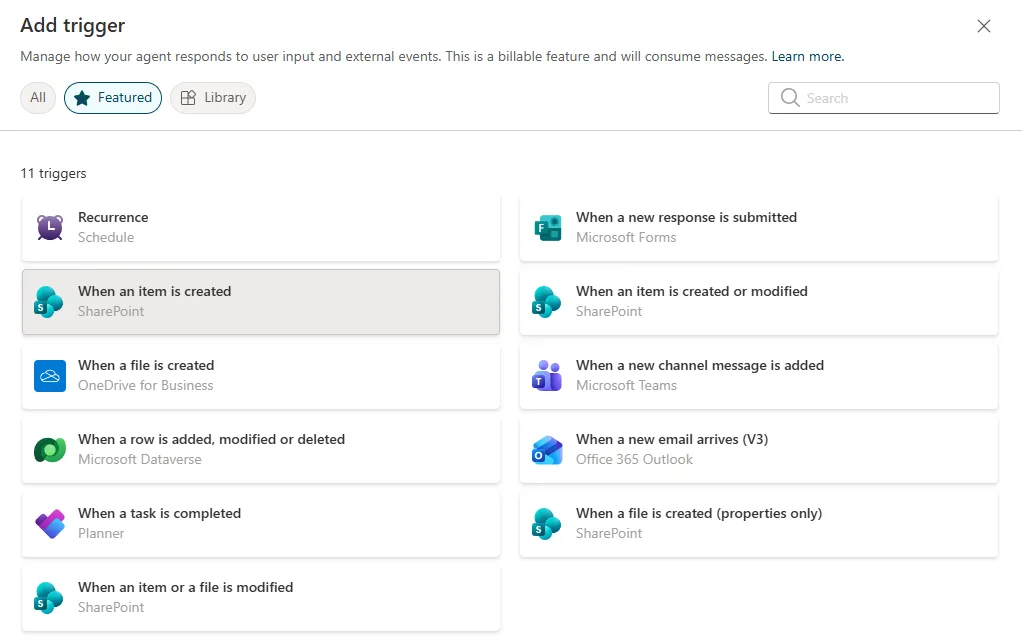
For a Standard agent, the simple rule is who starts it. When a licensed person asks it something in Copilot Chat, Teams or SharePoint, the licence covers it, within Microsoft’s fair usage limits. When something else starts it, such as a new email, a schedule or a new SharePoint item, it needs credits. Copilot Studio says so when you add one of those triggers.
A Standard agent also needs credits when:
- a flow it uses starts from any trigger other than the agent calling it;
- someone without a Copilot licence uses it, or it is used outside Microsoft 365, such as on your website;
- it uses computer use, operating a screen the way a person does.
The default Agent button is the exception to the rule. It needs credits even when a person starts it. These rules are from Microsoft’s billing rates page. Power Automate cloud flows are separate again, under Power Automate licensing.
Are these the same credits as Copilot Cowork? Yes. Microsoft calls Copilot Credits “a common currency for eligible Microsoft services” (Copilot Credits overview). The budget can still differ, because IT sets a spending policy for each service. A Cowork allowance may or may not be usable in Copilot Studio.
Why do some pages say GitHub? Microsoft calls the engine underneath an agent its harness. The default agent’s engine was called the GitHub Copilot harness until late October 2026, and is now the Microsoft Copilot harness. It has nothing to do with GitHub accounts or GitHub billing (Microsoft Tech Community).
Where to learn more about Copilot Studio
These are Microsoft’s own pages, in the order you will need them.
Getting started
- Quickstart: create and deploy an agent with the standard harness: Microsoft’s sample build. Its last step publishes to a demo website, which is outside Microsoft 365 and needs credits. Publish to Teams instead.
- Choose between Agent Builder and Copilot Studio: Microsoft’s decision guide for simple versus advanced agents.
- Compare agent harnesses: when the credit-billed agent is the better fit.
Building a Standard agent
- Knowledge sources: connecting SharePoint sites and files.
- Create and edit topics: questions, branches and set conversation paths.
- Agent flows overview: getting the agent to act on what it collects.
- Connect an agent to Teams and Microsoft 365 Copilot: publishing and sharing.
Costs
- Billing rates and management: what each feature costs, and what is included for licensed staff.
- Agent usage estimator: a credit estimate before you build.
Hands-on
- Agent Academy: Microsoft’s free, self-paced course that builds agents step by step.
Want a second pair of eyes on an agent before it goes to staff? Get in touch. We can also set up credits and spending limits for the agents that need them.
Tags
- copilot-studio
- copilot
- microsoft-365
- business-premium
- copilot-credits
- agentic-ai
- managed-it