In this article
- 01 What passwordless actually means in Microsoft 365
- 02 What your staff will actually see
- 03 Why Microsoft 365 Business Premium makes this approachable
- 04 How we roll this out, step by step
- 05 The quiet wins: fewer tickets, faster onboarding
- 06 Your Essential Eight level after the rollout
- 07 What we’re advising every managed client
Phishing is still the most reliable way to break into an Australian business. The Australian Signals Directorate’s Annual Cyber Threat Report 2024-25 recorded phishing in 60% of every cyber security incident it responded to over the year. Stolen account logins were close behind. The average cost of cybercrime per Australian business climbed 50% to $80,850, and to $97,200 for medium businesses (up 55% on the year before). ASD’s resilience guidance on multi-factor authentication is no longer hedged: “Use phishing-resistant MFA wherever possible, preferably passkeys.”
The defence everyone reaches for is multi-factor authentication. That is the second step where you type a code, or approve a prompt on your phone, after entering your password. We’ve insisted on it across every managed client well before the insurers started asking, and it does block most automated attacks. The trouble is that it doesn’t block the new generation of phishing kits, which can intercept the code or the approval as you type it. SMS, voice approval, and number-matching push notifications all still ask a busy human to judge whether a sign-in is genuine. Get tired or rushed enough, and the wrong person gets a green tick.
The only way out of that loop is to remove the password from the equation entirely. Hence the headline.
123456qwertypasswordiloveyouPassword1
- SMS
- Voice call
- Authenticator (push)
- App code
- Key fob code
- Windows Hello
- Authenticator passkey
- Security key
What passwordless actually means in Microsoft 365
Four ways to sign in, all included in a Microsoft 365 Business Premium subscription.
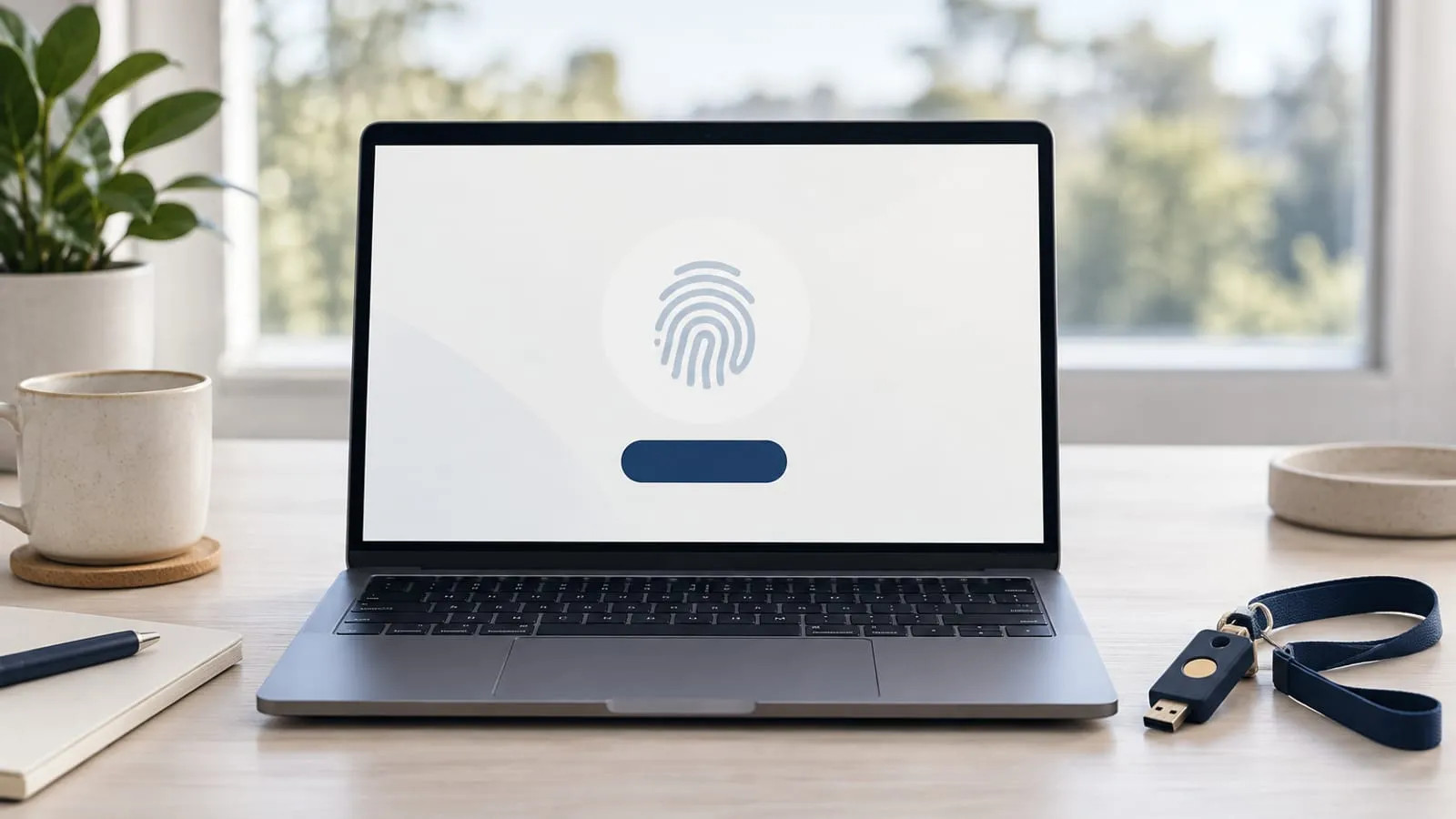
- Windows Hello. Sign in to your laptop by looking at the camera or pressing a fingerprint reader. The sign-in credential is locked inside a chip in the laptop and never gets typed, sent, or stored anywhere it could be stolen.
- A passkey in the Microsoft Authenticator app. A sign-in credential kept on the user’s phone, released by Face ID or fingerprint. To sign in on a different device, the user scans a QR code with their phone and approves on the phone.
- A hardware security key. A small stick that plugs into the laptop or taps against a phone. The most common brand is YubiKey. Useful for shared workstations, senior staff, or as a backup when a phone is lost.
- A passkey held on a Windows device. A newer pattern that lets a Windows machine store a passkey for an account, without the laptop itself being managed by your IT team. Useful for shared kiosks, contractor laptops, and other unmanaged devices.
All four are described as “phishing-resistant” because of how they work. The credential is mathematically tied to one specific piece of hardware. A fake login page can’t capture it, because there’s no password to type. The device also won’t release the credential to a website it doesn’t recognise. Microsoft’s phishing-resistant deployment guide and Intune passwordless overview cover the full menu if your IT team wants to read along.
The older “approve this sign-in” prompt in Microsoft Authenticator is a fifth option. It’s a real step up from SMS codes, but it isn’t phishing-resistant on its own. We use it as a stepping stone for users we haven’t moved to Hello yet, never as the destination.
What your staff will actually see
A staff member who’s gone passwordless on a Windows 11 laptop signs in by looking at the camera or pressing a fingerprint reader. That same gesture signs them into Microsoft 365, SharePoint, Teams, Outlook, and every other app the business uses through Microsoft. With a small one-time setup, it also covers any traditional file servers the business hasn’t moved to the cloud yet. There is no password to type, and no one to phish.
When they pick up their phone, the same identity is available via the passkey in Authenticator. New browser session on a personal device. Sign-in on a colleague’s machine. Contractor visit at a client site. Scan the QR code, approve with Face ID, you’re in. No password, no SMS code, no MFA prompt to misjudge.
The change everyone notices first is speed. Microsoft’s published passkey figures have a sign-in averaging around 8 seconds, against up to 24 seconds for a password and MFA combination. The same numbers show a sign-in success rate of 98% for passkeys, against 32% for passwords. Roughly three times the success rate at a third of the time. We see the same pattern on rollouts: the staff who were most resistant to “another security thing” become the loudest advocates by week two.
Roughly three times the success rate at a third of the time.
Why Microsoft 365 Business Premium makes this approachable
Going passwordless used to be the kind of project only enterprises with full-time identity teams could pull off. That is no longer true. Microsoft 365 Business Premium is the licence we already recommend to almost every client over 25 staff. It includes the two pieces that make a passwordless rollout work end to end.
- The security policy engine. It lets us require phishing-resistant sign-in on the apps holding real data. We also get central reporting on who has signed up, plus the controls to push the change out to everyone at once.
- The device management piece. It registers each laptop, iPhone, and Android phone with the business. Each device then gets the right settings automatically, ready for the credential it’s going to hold.
Together they cover every step: register the device, push the policy, set up the new credential, retire the password. Microsoft’s Windows Hello for Business overview covers the laptop side in technical depth.
The same licence also includes the email security, malware protection, data-loss prevention, and document classification you’d want anyway. Business Premium is, in our view, the strongest cybersecurity platform a 20 to 250 staff Australian business can buy off the shelf. Going passwordless on it is the single biggest security improvement you can make.
How we roll this out, step by step
Done properly, a passwordless rollout follows the same six steps every time. We’ve run it enough times that it’s predictable.
- Set the rules. We configure the security policy engine to require phishing-resistant sign-in on Microsoft 365. The same rule covers any app holding sensitive information: finance systems, practice management software, anything regulated.
- Set up Windows Hello on every laptop. The settings get pushed to each managed Windows machine. Where the business still runs traditional file servers, we link the new sign-in back to those at the same time.
- Register a phone passkey for every staff member. Each person sets up their phone in the Authenticator app. From that point, the phone covers every cross-device or away-from-desk sign-in.
- Use one-time setup passes for new starters. A new staff member receives a temporary code, which Microsoft calls a Temporary Access Pass. They use it to sign in once on their laptop and phone, register the permanent credentials, and never see a password.
- Keep two emergency keys somewhere safe. Two emergency accounts, each holding a hardware key, kept somewhere physical: a locked drawer at the office, or a safe. Both are excluded from the new rules. These exist for the day something goes wrong with the identity platform itself.
- Turn off password sign-in. Once everyone is registered, password sign-in gets disabled in the security rules. The point of the exercise is closing the door, not just opening a new one.
Step six is the one most rollouts skip. If the password still works for any account that touches business data, you’ve added a feature, not removed an attack surface. Phishers will keep trying, and one tired staff member is enough.
The quiet wins: fewer tickets, faster onboarding
The security argument is the headline. The operational wins arrive first, before the security gain is even measurable.
- Password reset volume drops near zero. No password to forget. The helpdesk gets back the time it used to lose to “I can’t get into Outlook” tickets. That capacity goes into work that actually moves the business forward.
- Onboarding gets faster. Day one for a new staff member becomes: receive the laptop, scan a QR code with the phone, fingerprint the laptop, work. No “welcome email with the temporary password”, no first-day reset call, no half-day waiting on IT.
- Account-takeover incidents stop. Not “drop by 80%”. Stop. We can find malicious sign-in attempts in the security logs every week, but they have nothing to attack.
- Audit conversations get shorter. On every cybersecurity insurance application and Essential Eight assessment we’ve seen this year, one box is the easiest to tick. It is “we use phishing-resistant MFA on every employee, with passwords disabled”. It’s also one of the harder controls for a competing IT provider to claim with a straight face.
Your Essential Eight level after the rollout
The Essential Eight is the Australian government’s list of the eight most important cybersecurity controls a business should have in place. It’s the framework most insurers, regulators, and larger clients use to ask “are you doing the basics?” The model has three maturity levels. Level One is the entry bar. Level Two is the standard expected of a business holding sensitive data. Level Three is the standard expected of a high-risk target, like a critical infrastructure operator.
Multi-factor authentication is one of the eight controls, and the requirement gets stricter at higher levels. Level Two requires phishing-resistant MFA on every account that accesses important data, with sign-in events logged centrally. Level Three keeps that scope, adds central monitoring of those logs, and requires that the second factor cannot be used on its own. That last requirement means the password is gone. The 2024-25 ASD report restates the same expectation in plainer language: phishing-resistant MFA, preferably passkeys.
Going passwordless on Microsoft 365 Business Premium lifts this control to Level Two in one move. The rollout takes you most of the way through Level Three as well. Windows Hello and the phone passkey both meet the phishing-resistant bar Microsoft and ASD describe. The older “approve this sign-in” prompt in Authenticator does not.
The same rollout improves a second Essential Eight control: restricting administrative privileges. That control requires phishing-resistant sign-in on every account with admin rights at Level Two and above. Admin accounts get the same passwordless credential as everyone else. We see the gap routinely on assessments: privileged accounts still on the same SMS code that’s been deprecated for two years. Meanwhile the business has been telling its insurer it has the controls in place.
On an Essential Eight scorecard, the MFA control moves from “we have MFA” to “phishing-resistant for every user, logged, monitored.” That’s a real maturity step, not a tickbox renaming. Run our Essential Eight self-assessment to see what your MFA control scores today, and what it would score after.
What we’re advising every managed client
- Move to Microsoft 365 Business Premium if you’re not already on it. The price step from Business Standard is small relative to what you get. Every other recommendation here depends on what the licence includes.
- Roll out Windows Hello and phone passkeys to every staff member. No opt-in pilot that runs for a year. The controls only work if everyone has moved, and a half-deployed rollout is mostly cost.
- Set the rules so that signing in to Microsoft 365 and any app holding sensitive data requires the new phishing-resistant credential, not a password.
- Use one-time setup passes for onboarding and recovery. New starters never see a password; users who lose a device don’t get reset to one.
- Keep two emergency keys in a locked drawer or a safe, excluded from the new rules. Don’t skip this.
- Disable password sign-in for the user population once everyone is across. Closing the door is the step that actually removes the risk.
Managed clients will hear this from their account lead at the next review anyway. If you’d rather move sooner, get in touch.
This is, in our view, the single most consequential cybersecurity decision an Australian SMB on Microsoft 365 will make in 2026. The licences are already in the package. The deployment is well-documented. What’s missing is the decision to actually finish it.
Tags
- passwordless
- microsoft-365
- entra-id
- windows-hello
- passkeys
- intune
- mfa